Utilities · v1.15.36
Runtime Live Machine Pro
On air. In control. The broadcast playout you can trust live.
What it is
Desktop audio playout application for live broadcasts, for Windows and Linux: podcasts, web radio, events. You load files into a grid of columns, each with its own role, and during the show you launch them with a click, a key or a MIDI controller.
Runtime Live Machine Pro answers a precise problem: live audio direction (radio, podcasts, events, theatre) is a performance activity, not an automation one. It requires instant control, steady nerves and software that does not betray you at the wrong moment. It is not an all-day music scheduling system, nor a DAW for post-production, nor a simple player with a queue: it is a real-time control-room machine, built around the idea that every show is a unique act and deserves precise control over every transition.
The program takes care of the rest: it lowers the music when a voice comes in, silences the beds when a song starts, handles the transitions between tracks. They are the rules a good sound director applies automatically, hidden under an interface that asks for a single gesture: clicking the right clip at the right moment. The presenter who hosts alone, with no sound engineer alongside, can concentrate on what they do best.
Every show lives in a self-contained project file, with the arrangement of clips, volumes, MIDI mappings, cue points and director’s notes. No telemetry, no account, it works offline too. It is free software under the MIT licence.
Features
- 01
6-Column Live Board with ON AIR display
- 02
«Backlit Pads» Interface, WCAG Contrast
- 03
Professional Transition Engine
- 04
Smart Mic: your voice ducks the music
- 05
Broadcast Master Chain
- 06
Session Recording (WAV/FLAC/MP3)
- 07
Audio Hierarchy per Column
- 08
5×5 FX Pad «jingle machine»
- 09
Automix View with BPM
- 10
Non-Destructive Waveform Editor
- 11
NoteBoard: the script in the booth
- 12
Keyboard and MIDI Learn
- 13
Remote Control from tablet or phone
- 14
Export Project with Audio
Screenshots
01 / 07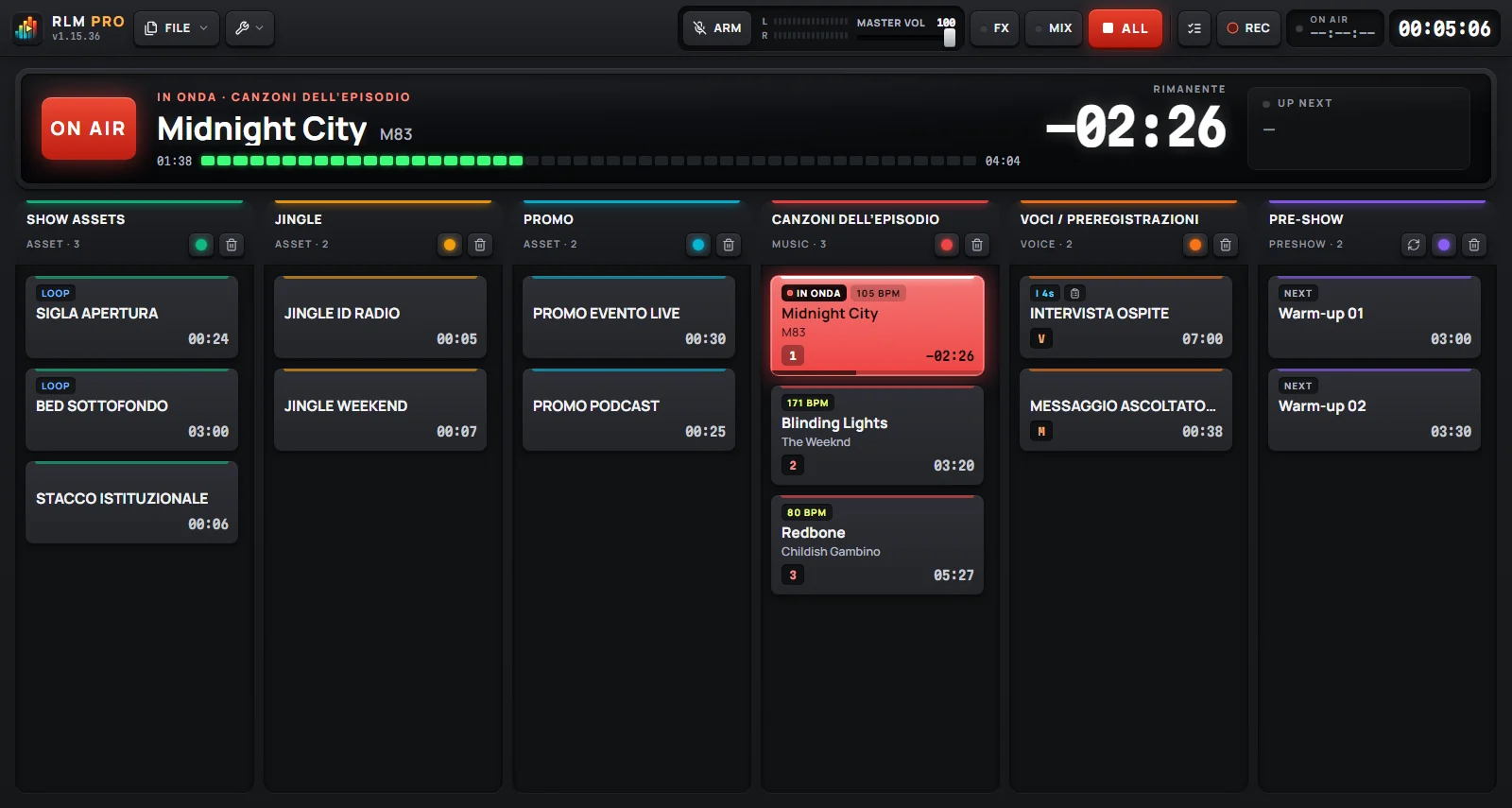


They scroll on their own. Click an image to enlarge it.
Who it is for, and what it is not
The author kept podcasts, talks and a web radio going for years, almost always alone: the running order, the music, the interviews, the volumes, the timing. He knows what it means to realise live that the song is about to end while you are still forming your thought, or to lower the fader with one hand and look for the right clip with the other. The program was born from that frustration, and from the conviction that audio direction should not be a job of its own: it should be transparent.
The aim is human direction of finished shows, not the automation of a radio station 24 hours a day. That is why the program has no time-of-day scheduling and no automatic playlist rotation: the only automation allowed, the Automix view’s automatic mode, is off by default and works only while the view is open. For 24/7 there is dedicated software, answering different needs.
- The broadcast professional
- The director of a commercial radio, the engineer of a live stream, the presenter who runs their own show: a system on a par with high-end tools, with the operational agility that those systems often sacrifice to complexity.
- The content creator
- The independent podcaster, the web radio host, the live event organiser: a tool that does not require years of technical training, but does not compromise on the quality of the result.
One project per show
Every show lives in a self-contained .lmp file, the «isolated project»: the arrangement of clips, volumes, MIDI mappings, cue points, director’s notes. Loading that file you find the show exactly as you left it, without reconfiguring the software; past episodes are archived and reopened months later with no surprises. The file is JSON, readable by any editor and not proprietary.
The .lmp does not contain the audio files, only their paths. Export project with audio copies everything into a subfolder next to the project and repoints the clips to the copies: from then on the originals can be safely deleted, and the folder (.lmp plus audio) can be moved, renamed, zipped and carried to another computer, where missing files are found and relinked by themselves. The operation is repeatable, and the program deletes files only in audio folders it created. If a file of the same name is already in the archive, the new one gets a suffix instead of overwriting it.
How to install it
It is downloaded from the project’s releases page on GitHub. The audio engine, FFmpeg, is built into the package: no prerequisites to install separately, no manual configuration. It works with any audio device recognised by the system, from the built-in card to professional USB mixers such as the Rødecaster Pro. The program opens on the welcome screen, with New Project, Load Project, the manual and the quick guide.
- Windows
- Windows 10 64-bit (Windows 11 recommended). NSIS .exe installer. As it is not signed with a commercial certificate, SmartScreen shows a warning: More info, then Run anyway. Official installers are published only on the Releases page.
- Linux
- Ubuntu 20.04 or Debian 11 (Ubuntu 22.04 LTS recommended). Portable AppImage, to be made executable, or a .deb package for Debian, Ubuntu and Mint. On some distributions the libasound2 package is needed.
- macOS
- There is no official installer: whoever has a Mac builds the program from source (Node.js 20 and a few commands are needed, described in CONTRIBUTING.md). The package built this way is not signed, and a self-built app reports new versions but cannot install them.
- Resources
- 4 GB of RAM (8 or more is better), 300 MB of disk for the program (1 GB recommended plus space for the audio files), a modern dual-core processor or better.
The control grid
Since 1.15.36 the desk is designed as a hardware surface, the «Backlit Pads» interface: raised keys, recessed displays, LEDs in each column’s colour. At rest it stays quiet, and whatever goes on air lights up. Text is large and contrast is measured with the WCAG formula on every screen; the fonts, Manrope and Martian Mono, are bundled with the program and work offline too.
The interface is organised in vertical columns, each with a precise semantic role. A clip’s position in the grid is not decorative: it determines how the software will treat it on air, with its own mixing priority, exclusion rules and fade values. Columns that are not needed can be hidden from Settings without losing the clips they contain, and the colour of each is chosen from a palette of 30 tints, saved in the project.
Above the grid there is always the ON AIR display, readable from afar: the ON AIR lamp, title and artist of the track on air, an LED bar following the real progress (cyan up to the end of the intro, amber from the Outro on, so you can see in advance where the tail falls), the remaining time in a colour that changes with the phase, and UP NEXT with the clip that will start next, with artist and duration. At rest it shows OFF AIR and always keeps the same height, so the columns never move.
- Show Assets
- Theme tunes, beds, structural backgrounds of the show. They give way to voices and songs, but keep their internal rotation until stopped.
- Jingle and Promo
- Two columns for identifying jingles and for promos and self-promotion. In audio terms they behave like Show Assets; keeping them separate keeps the running order readable.
- Episode songs
- The music playlist. It takes part in automatic mixing: it is lowered by voices and silences the beds. On every clip the program detects the BPM and shows it with a badge.
- Voices / Pre-recorded
- Interviews, pre-recorded spoken blocks, voice messages. It is the column with the highest priority: when a clip here plays, everything else is lowered.
- Pre-Show
- Waiting music before the show, as a stand-alone queue, with an optional rotation of jingles and promos at regular intervals. Once the show has started it is emptied with a multiple selection.
- The audio card
- The title has a line of its own with the artist below; at the bottom the assigned keys and the timer, red in the last 15 seconds. Badges show the properties: LOOP, NEXT, UP NEXT, BPM, the Intro length, the note marker. The clip on air lights up entirely in its column’s colour, with dark or white text chosen by contrast and a progress bar along the bottom; the next one in the queue has a green ring and LED. Click to start or stop, Ctrl+click to select, right-click for settings, drag to reorder.
- DEAD AIR alert
- When the clip on air is the last in the column, is not looping and has less than 20 seconds left, the header turns amber, its strip blinks and the END badge appears: the advance warning to prepare the next track before silence.
Loading and launching
There is no internal browser and no central library: files are dragged from the file manager onto the columns, one or many, and a card is born for each. A blue line shows where it will be inserted. Alternatively an M3U playlist is imported from the File menu. Formats are those of the FFmpeg engine: MP3, WAV, FLAC, AAC and M4A, OGG Vorbis, Opus, WMA, and the audio tracks of WebM and MP4.
Files are never loaded into memory: the media:// protocol streams them from disk, so an uncompressed 2 GB WAV behaves like a 5 MB MP3. The program keeps the file’s absolute path, not a copy.
In every column the «one clip at a time» rule applies: launching a track stops, with a fade out, the one playing in the same column. FX pad effects are the exception. Moving a clip to another column, the clip inherits the rules of the destination: a voice moved among the songs is ducked like a track. Changes to the running order are undone with Ctrl+Z and redone with Ctrl+Y, for several dozen steps. If a clip cannot be played, a message with its name appears and the sequence moves on to the next one instead of stopping.
Preparing a clip
A recording has seconds of initial silence, a track has an endless tail, an interview is too quiet: instead of resorting to an external editor, every clip has a configuration panel (right-click) and a visual waveform editor. All changes are non-destructive: the original file stays untouched, and settings live in the project and are applied on the fly.
- Name, colour and Gain
- A descriptive name («OPENING THEME» instead of theme_rev3_final_def.mp3), a colour to make critical clips stand out, and a gain from 0 to 150% before the Master Volume, to align levels.
- The four handles
- Trim Start and Trim End (red) delimit the actual audio; the Intro Marker (cyan) marks where the melody comes in, and the Outro Marker (orange) where the tail begins. The INTRO and OUTRO IN countdowns appear on the card. Zoom from 1× to 8×, adaptive ruler, preview playhead.
- Auto-Trim and Smart Cues
- The magic wand detects silence with FFmpeg, with a threshold estimated about 25 dB below the file’s average level, and sets both trims by itself: ideal for phone calls, voice messages and interviews. Smart Cues proposes the Intro and Outro markers by itself.
- Fades
- Fade In and Fade Out from 0 to 60 seconds, with a linear curve: 2–3 seconds are typical for songs, 0 for hard cuts.
- Next Action and loop
- Stop at the end, or Play Next, which starts the next clip of the column by itself with the configured transition: on several consecutive clips it builds a block that flows without interruption. Loop repeats the clip from the Trim Start, for beds and ambiences.
- Transitions
- Crossfade (the two clips fade overlapping, 2 seconds), Segue (the outgoing fades and the next starts at once at full volume, 0.8 seconds), Gapless (hard cut). They are set per clip or with the Global Default, and are tried with «Test →» without going on air.
- NoteBoard
- A text of any length is attached to each clip: when the clip starts, the panel appears at the bottom with the text, headed by the clip’s name. For the first lines of the spoken block after the theme, the text of an ad, operational instructions or the questions for the guest.
The mixing engine
The problem of manual direction is the multiplication of simultaneous actions: starting a track, lowering the music, talking, preparing the next clip, watching the clock. The mixing engine delegates to the software the rules the operator would define if they had enough hands. It is not automation behind the operator’s back: every behaviour depends on the column, with no hidden exceptions in clip properties.
- Audio hierarchy
- Voices have absolute priority and stay at nominal volume while everything else is lowered. Songs give way to Voices and command over beds. Show Assets, Jingle and Promo are lowered by Voices and silenced by Songs. FX pad effects are outside the hierarchy, with a single courtesy: they drop to 50% when a voice speaks.
- Ducking
- Launching an interview from the Voices column, the song drops to about 20% (about 14 dB less) in half a second, and rises again with an equally smooth fade when the interview ends. Amount and speed are set in Settings.
- Music Dominance
- When a song starts, the Assets loop bed does not stop: it goes to zero volume, keeps running «as a ghost» and, when the song ends, comes back with a fade from where it had got to. The flow bed, song, bed needs no click.
- Smart Mic
- The program listens to the microphone and, when you speak, lowers the music; when you stop, it brings it back up. It is enabled in the Microphone tab (threshold, attack and release times, mix channel with its own volume) and armed with ARM. It is meant for a direct USB microphone: with a USB mixer, which sends the music on air back to the computer as well, leave it off and leave ducking to the mixer. It is off by default.
- Volume normalisation
- Clips from different sources have different levels: by default the program brings the perceived loudness of each to a common reference, according to the EBU R128 standard, with an adjustable target of −16 LUFS.
- Master Chain
- The combined signal passes through three stages, all adjustable and switchable: a 30 Hz high-pass filter, a multiband glue (three compressors on three bands, with Neutral, Rock, Jazz and Electronic presets) and a brickwall limiter, which since 1.15.34 is measured and really holds the set ceiling, without raising the programme level. If the signal already goes through a hardware mixer, the chain is switched off to avoid double processing.
FX pad and Automix view
Two surfaces open above the grid with a key, for two opposite moments of the show: the FX pad, to launch effects and stingers with certainty without interrupting anything, and the Automix view, to handle the music flow the way a DJ would. Neither takes space from the grid, and neither responds to Esc, which always remains STOP ALL.
- FX pad
- The jingle machine: 25 cells (5×5) that grow in rows, into which files are dragged. A click launches the effect, which plays at full volume over anything, without stopping it; several effects play together. It is configured quickly (name, colour, volume, loop) or fully, with the clip window. It sits bottom left or bottom right, as preferred. It is an overlay that does not intercept clicks elsewhere.
- Automix view
- The Music column’s deck, called up with MIX: the track on air, the next one with the remaining time, and a transition button that applies the crossfade with a rhythmic lock on top. Next to each track a dot shows tempo compatibility with the previous one (green, yellow, red). If a lock is not feasible, the program says so and falls back to a classic crossfade.
- Automatic mode
- A switch starts the switch to the next track by itself at the end of the track. It is a deliberate exception to the program’s philosophy, which is why it is off by default and works only while the view is open: it is the tool for the half hour of music only before coming back on voice.
Hardware, keyboard and MIDI
The program outputs to the system’s default device, or to the one chosen in the Audio & Mix tab; if the device is unplugged, it falls back to the system one. With a USB mixer (Rødecaster, Focusrite Scarlett) it is best assigned to a secondary channel, to control its volume with a dedicated physical fader. Latency depends on the device buffer: 256 or 512 samples are the right balance between latency and stability.
- Keyboard
- Esc is STOP ALL, when the program is the active window, even while typing in a text field. F1, F2, F3… launch the first clip of the visible columns, from the left. Each clip can have its own key (letters, numbers, numpad, space bar), with a warning on conflict; keys disable themselves while typing. With a window open the other shortcuts are suspended, and Esc closes it without stopping the show. System shortcuts that would do damage on air, such as Ctrl+R reloading the interface, are disabled.
- MIDI Learn
- USB-MIDI controllers (keyboards, pads such as the Novation Launchpad, faders such as the Korg nanoKONTROL2) recognised even when hot-plugged. There is no need to know note numbering: MIDI Learn is switched on, the clip or pad cell is chosen and the key on the controller is pressed. All 16 MIDI channels are accepted. Note On for clips and global actions, Control Change for faders and knobs, ideal for the Master Volume.
- Portability
- The clips' MIDI mappings are stored in the project and travel with it; those of global functions (Stop All, Master Volume) are tied to the computer.
- Remote control (Beta)
- A small local web server, to be enabled in Settings, lets you control the Music column from a tablet or phone on the same network, with just a browser: open the address on port 8787 and enter the six-digit PIN, regenerated at every start. From remote you can only start and stop the Music column’s tracks, and run Stop All. The PIN is mandatory, attempts are limited, the server accepts only its own page and the three commands provided. It always starts off.
Recording and the playout log
The program captures the master directly after the limiter, that is everything that leaves the application, Master Chain included, with no separate recording software and no virtual routing. It starts from the button in the header, even before the first clip starts, and stops with the same button. During capture it writes an Opus stream in WebM at 320 kbps, with a safety limit of about four hours. At the end a window offers the format to save in. Quitting the program, or installing an update, with a recording running or not yet exported, asks for confirmation.
The Playout Log is the chronological record of launches: what went on air and when, up to the last few thousand events. It is used to reconstruct a running order afterwards or to compile a report of a show.
- Lossless formats
- Uncompressed WAV and compressed FLAC, at 16-bit, 24-bit (default) or 32-bit float. For archive and post-production.
- Lossy formats
- MP3, OGG and WEBM, at 128, 192, 256 or 320 kbps. For distribution and podcasts: 192 kbps stereo is the recommended minimum, 256 the standard for transparent quality.
Data safety
Preparing a show takes time, and that work must survive a crash, a move to another computer, going back to an episode archived months later. Saving is atomic: the file is written to a temporary copy and then renamed, so a power cut never leaves the .lmp half-written. Save As creates progressive versions of the same show; closing with unsaved changes, the program asks whether to save, discard or cancel.
- Auto-Backup
- Next to the project the program keeps a .bak copy with the last valid state; in parallel it writes rotating snapshots in the autosaves folder of the application data, keeping the ten most recent, even for an untitled project never saved.
- Integrity check
- When each project is opened the program checks that every audio file is reachable: missing ones are flagged by the red border and the MISSING FILE label, and the rest of the project stays fully functional. The program also validates the file, brings out-of-range values within sane limits, and adds by itself the columns introduced by versions later than the one the project was created with.
- Compatibility
- .lmp projects are compatible with later versions: updating the program involves no losses or manual migrations.
Updates: never during the show
Two rules govern everything: no update must interfere with a live show, and no download starts without the user’s consent. About three seconds after start the program silently checks whether a newer version exists and shows the outcome on the welcome screen (Up to date, Update available, OFFLINE). The update window shows the real release notes, and the download starts only by pressing Download.
If the check finds an update while you are on air, it does not interrupt: the window waits and opens by itself only when the show is over. The only exception is the Check for updates now button in the Info panel, which is an explicit action. Before installing with unsaved changes the program asks whether to save, and after every update, at first start, a screen recalls the news once only.
- Windows and Linux AppImage
- The update is built in: it is downloaded from the window and installed at restart.
- Linux .deb
- The program cannot install reliably: the window opens the browser on the download page, from which the package is downloaded and installed like the first time.
- macOS
- A self-built app reports the new version and opens the project page; to update, the updated code is downloaded and rebuilt.
When something goes wrong
- The timer runs but nothing is heard
- The signal is there but does not reach the listening device: check the Master Volume, the output device (USB identifiers may change after a reconnection) and the external mixer’s channel.
- Audio skips or crackles
- Almost always the cause is external: CPU under extreme load, audio card buffer too low (below 128 samples dropouts may appear), slow or nearly full disk, from which audio is streamed.
- Level too low or too high
- Act on the clip’s Gain, on the Master Volume, or on normalisation and the Master Chain, which can be adjusted or switched off in Settings.
- Red card, «MISSING FILE»
- The file was moved, renamed or is on a disconnected external drive, or the project was opened on another computer. Reconnect the drive, put the file back, or replace the clip; in future, Export project with audio prevents the problem at the root.
- The MIDI controller does not respond
- Check that it is detected and that MIDI Learn was switched off after mapping; controllers with proprietary drivers require the driver installed before connecting.
- Remote control does not connect
- The device must be on the same network, with the address shown in Settings and the correct PIN (it changes at every start). If the switch turns itself off, port 8787 is occupied by another copy of the program or another program.
- Start-up warnings
- On Windows, SmartScreen: More info, then Run anyway. On macOS, a self-built app: right-click, Open, or allow from System Settings. If the program behaves oddly, close and reopen it; the installation path must not contain special characters.
The project
Runtime Live Machine Pro was born in January 2026 as a Runtime Radio tool, to run live shows without a director alongside. It was distributed as a commercial product until September 2026, when it was withdrawn from sale and opened under the MIT licence. It is feature-complete and in production, maintained for fixes, and pull requests are welcome.
It is free and will stay so. The program was written making heavy use of large language models (Google Gemini and Anthropic Claude), and the author states it openly; the concept, the project direction and the definition of every functional detail are Simone Pizzi’s, and every behaviour was verified in the control room and corrected by hand. The models wrote the code, the decisions were his. The microphone activates only when armed, and projects, recordings and settings stay on the disk.
Technical sheet
- Version
- 1.15.36
- License
- MIT · free software
- Platforms
- Windows 10/11 64-bit · Linux (Ubuntu 20.04, Debian 11)
- Formats
- Windows: .exe installer · Linux: AppImage and .deb
- Architecture
- Electron 28 + React 18 + Vite 5 + FFmpeg
- Audio
- Web Audio API · FFmpeg/FFprobe in the main process · media:// streaming
- Audio formats
- MP3, WAV, FLAC, AAC/M4A, OGG, Opus, WMA, WebM/MP4
- Projects
- .lmp files in JSON · autosave · .bak backup
- Resources
- 4 GB RAM (8 better) · 300 MB disk
- Languages
- Italiano · English
- Network
- GitHub only for updates · optional local server for remote control
- Updates
- From GitHub Releases, with consent, never during a live show
- Status
- Feature-complete, maintained for fixes
Available
Ready to try it?
Get it from the releases page, with the source open.